TL;DR: Windsurf’s MCP docs now describe two agents with two config systems. The legacy Cascade agent reads
mcp_config.jsonand uses aserverUrl(orurl) field for remote servers. The newer Devin Local agent uses the Devin CLI config. Check which agent your tab runs before editing anything, keep the connection address out of version control with${env:...}or${file:...}, and leave tool approval on for anything that publishes.
If you set up an MCP server in Windsurf last year and it silently stopped showing up in a new tab, this is probably why. The docs now say the mcp_config.json instructions apply to the legacy Cascade agent only, and that the default agent for new tabs, Devin Local, configures MCP through the Devin CLI config files instead. Everything below comes from the official pages: the Cascade MCP docs (the old docs.windsurf.com address leads there) and the Devin CLI MCP configuration docs. Config details move between releases, so verify against them.
What you are connecting
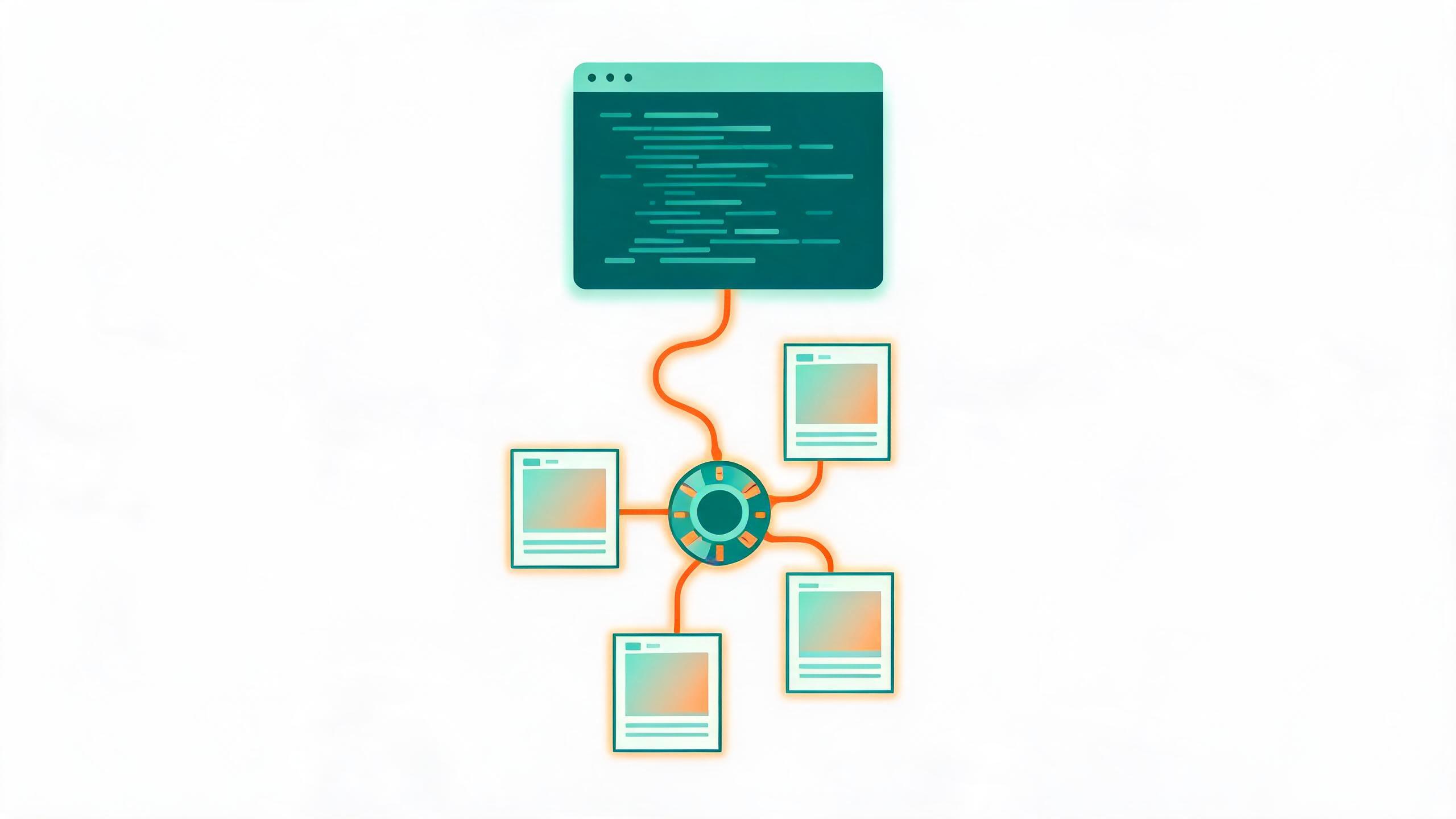
PublishPort exposes two generic tools instead of one plugin per platform. list_capabilities() reports which platforms are logged in on your computer. local_bash(cmd) runs a command there through the relay, using your own browser sessions, and the model reads each command’s --help to learn its arguments. The design is covered in how an MCP server for content publishing works.
Setup on your side: install the PublishPort desktop client, log in to the platforms you want, and copy the connection address from the AI integration page. Treat that address like a password, since it can run commands on your machine.
Path 1: the legacy Cascade agent
Per the docs, you open the file from the ... (Actions) menu in the Cascade panel, using the “Open MCP config file” icon in the MCPs section. The file lives at ~/.config/devin/mcp_config.json on macOS and Linux (or under $XDG_CONFIG_HOME if set) and %APPDATA%\devin\mcp_config.json on Windows. Older guides cite ~/.codeium/windsurf/mcp_config.json, which is a sign the guide predates the move.
For a remote server the docs say the configuration “requires a serverUrl or url field”:
{
  "mcpServers": {
    "publishport": {
      "serverUrl": "<your connection address>"
    }
  }
}
The docs’ example adds a headers object next to serverUrl. Whether your setup needs a header depends on your auth method, so check the PublishPort docs rather than guessing. Cascade supports stdio, Streamable HTTP and SSE transports, plus OAuth for each.
Keep the address out of the file
The Cascade docs list variable interpolation for command, args, env, serverUrl, url and headers. Two patterns are documented:
${env:VAR_NAME}: the environment variable’s value, or an empty string if it is not set.${file:/path/to/file}: the trimmed contents of a file, with~paths supported. If the file can’t be read, the pattern is left unchanged.
{
  "mcpServers": {
    "publishport": {
      "serverUrl": "${file:~/.secrets/publishport-mcp-url}"
    }
  }
}
Two failure modes follow from the documented behavior. An unset ${env:...} variable resolves to an empty string, so the server fails with no hint that the variable was the cause. And an unreadable ${file:...} leaves the literal text in place, so you get a connection error against a nonsense URL. When a server shows as failed, check this first.
Path 2: the Devin Local agent
Devin Local uses the Devin CLI configuration. The docs show commands for it, and for a remote server it is one line:
devin mcp add publishport <your connection address>By default that saves to local scope, .devin/mcp_config.local.json, which the docs describe as gitignored. The other scopes are -s project (shared through .devin/mcp_config.json, so it goes to your team via version control) and -s user (global, in ~/.config/devin/mcp_config.json).
The scope choice is the part that matters for publishing. Project scope puts the address in a file that gets committed. If the repository is public, you have published a credential for your computer. Use local or user scope. If it already happened, regenerate the address in the client so the old one stops working.
In a file, a Devin remote entry uses url (and optionally transport, headers). I did not find interpolation documented on the Devin CLI page, so I would not assume ${env:...} works there. Local scope is the safe place for the literal address.
Approvals and tool limits
Publishing is public and hard to retract, so I read the post text before approving each call. That is my practice, not a Windsurf requirement. Two documented limits are worth knowing:
- Cascade caps total tools at 100 across all servers. PublishPort contributes only two, so it barely dents that budget. You can disable individual tools of any server with a
disabledToolsarray. - On Teams and Enterprise plans an admin can allowlist servers by ID. The docs warn that once you allowlist any server, all others are blocked for the team. If a server works for you but not a colleague, ask whoever manages that allowlist.
Example: one release note, two platforms
With the server connected, I ask the agent: “Turn the changelog in this repo into a short post and publish it to Dev.to and LinkedIn.” It calls list_capabilities() to confirm both are online, reads each publish command’s --help, drafts, and waits for approval. Platform quirks differ, which is why the specifics live in automating Dev.to posts and scheduling LinkedIn posts. For the other editors, see the setups for Cursor and VS Code Copilot.
If an agent has never published for you before, rehearse with a throwaway post first.
Limits
- The desktop client must be running and logged in when the agent posts.
- Using your own sessions doesn’t exempt you from platform rules. Near-identical text sent to many places in a burst can still be throttled or flagged as spam.
- I have not verified how every Windsurf build handles the two config systems. If the docs and your install disagree, trust your install and the docs together, not this article.
- You are responsible for content quality and each platform’s terms.
Checklist
- You know whether your tab runs Cascade or Devin Local
- Cascade:
serverUrlentry inmcp_config.json, address via${env:...}or${file:...} - Devin Local: added in local or user scope, never project scope
- Server shows connected with its tools listed
- Approval left on; address regenerated if it ever leaked
FAQ
Should I use serverUrl or url?
For Cascade the docs accept either. url is what the Devin CLI format uses, so it’s the one to learn if you use both.
Why does the server show as failed after I edited the file?
Check the JSON is valid, the address is complete, and, if you used interpolation, that the variable or file actually resolves. Then confirm the desktop client is running. Some guides report you may need to refresh or restart the app after editing; I haven’t confirmed that for every version.
Do I need to log in again for each client?
For OAuth-based servers, yes. The Devin docs state each MCP client keeps its own OAuth session. Whether your address uses OAuth depends on the server, see the PublishPort docs.
Is this the same address I use in Claude or ChatGPT?
Yes, same address, different config format per client. Connecting AI to social media posting covers the general picture.
Ready to try it? See PublishPort pricing and connect your first platform.